
How to use SiteReplies
From your first library to backing up and linking a second device, in about two minutes.
90-second tutorial (real screen recording, silent, captions, fictional data). The written steps below contain the same information. Steps 7 and 8 in the video use a screenshot card.
Create a library
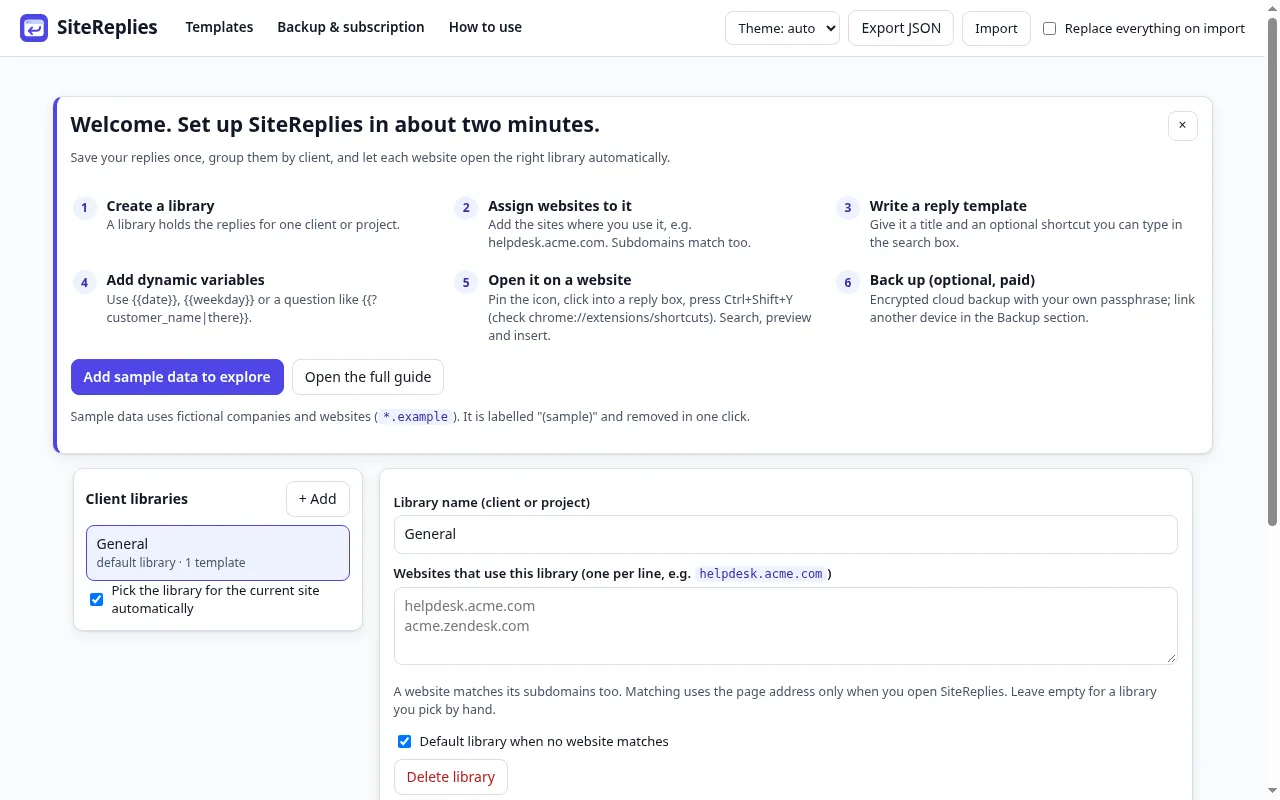
A library is a folder of replies for one client, project or team, for example "Acme Support". Open Manage templates (the link at the bottom of the popup) and click + Add under "Client libraries".
The first time, a welcome card offers Add sample data to explore: two fictional libraries you can remove in one click.
Assign websites to the library
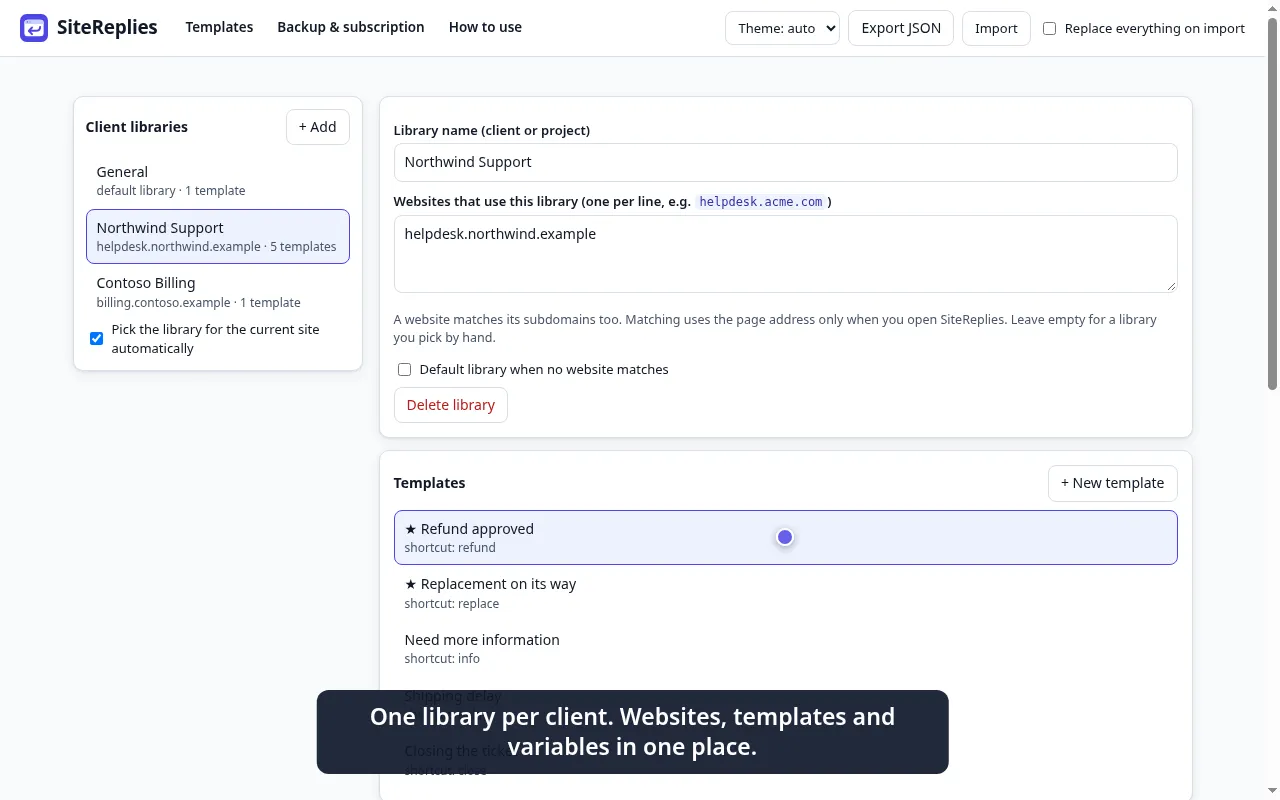
Under "Websites that use this library" type the sites where you reply for that client, one per line, for example helpdesk.acme.com. A site matches its subdomains too. When you open SiteReplies there, the library is selected for you and marked matched by site. If a site is not linked yet, press Use this library here in the popup.
Write reply templates
Click + New template. Give it a title, an optional shortcut (a short word you can type in the search box, like refund) and the text. Tick Favorite for the replies you use every day.
Hi {{?customer_name|there}},

I've approved your refund for order {{?order_id}}.

Best regards
Add dynamic variables
| Write this | You get |
|---|---|
{{date}} {{time}} {{weekday}} {{year}} | Today's date, time, weekday name, year |
{{site}} | The website you are on |
{{client}} | The name of the library |
{{?customer_name}} | A question: you type the value before inserting |
{{?customer_name|there}} | A question with a suggested answer ("there") |
Open SiteReplies on a website
Click into the reply box of the site first. Then Press Ctrl+Shift+Y if that shortcut is free on your system (you can change it at chrome://extensions/shortcuts), or click the SiteReplies icon in the toolbar (pin it from the puzzle-piece menu).
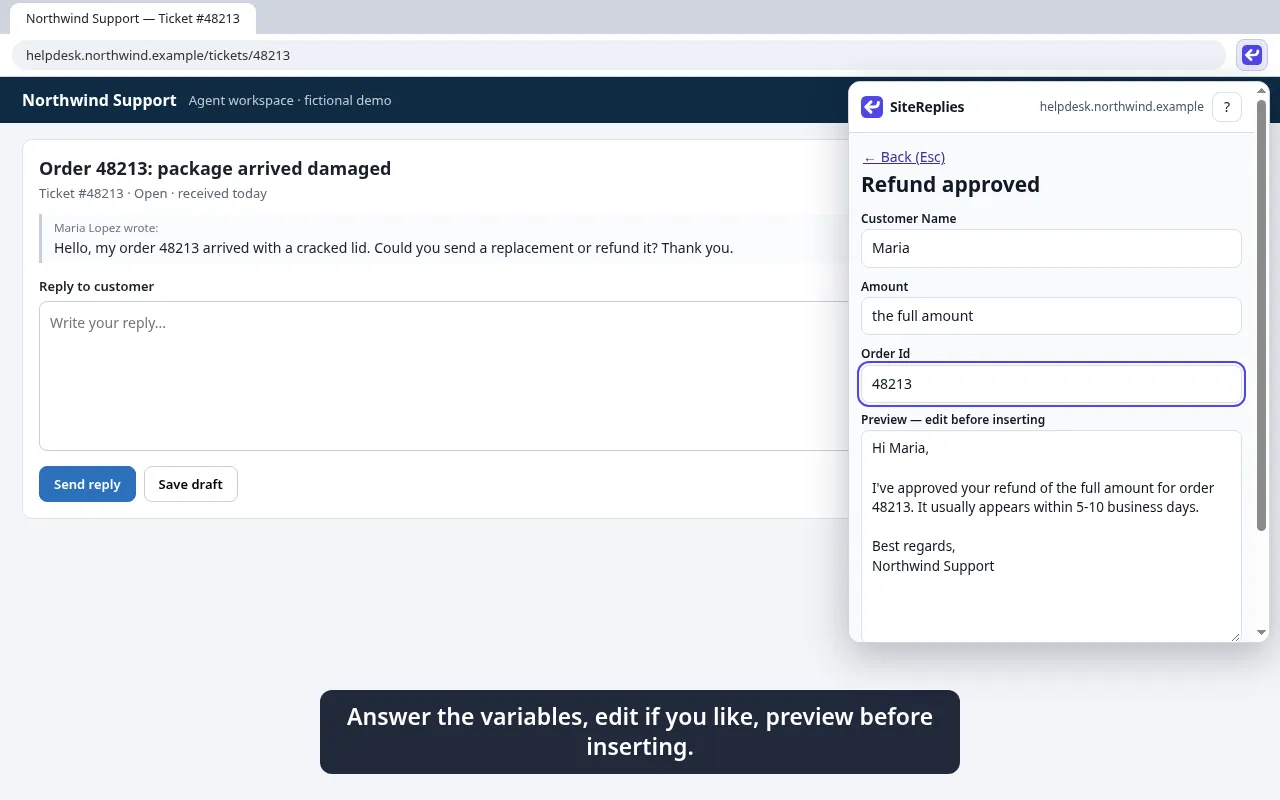
Search, preview and insert
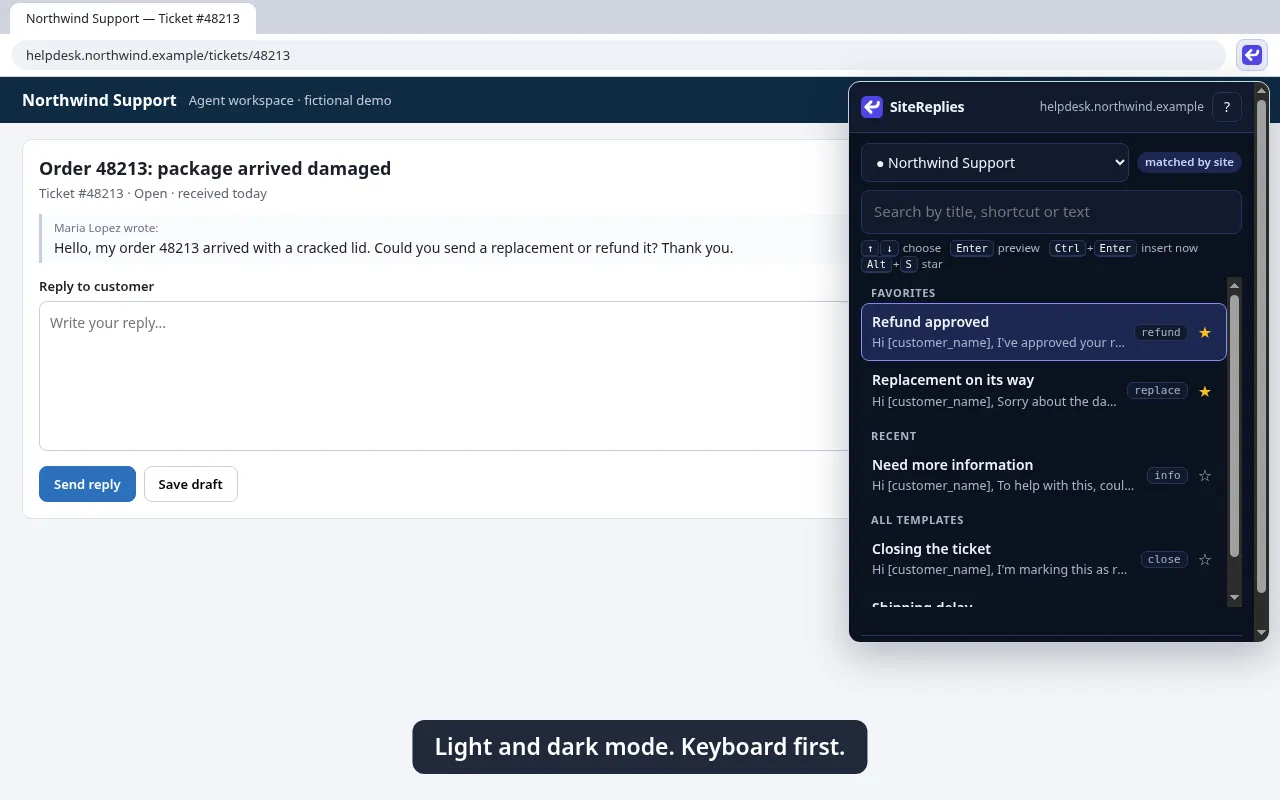
Start typing. Results update as you type (title, shortcut or text; small typos still match). Use ↑ ↓ to choose.
- Enter opens the preview. Answer the questions, edit the text if you want, then press Ctrl+Enter or Insert.
- Ctrl+Enter in the list inserts immediately when the template has no questions.
- Alt+S stars or un-stars a template. Favorites and recent ones come first when the search box is empty.
- Copy puts the text on your clipboard for editors that do not accept insertion.
Back up and restore (subscription)
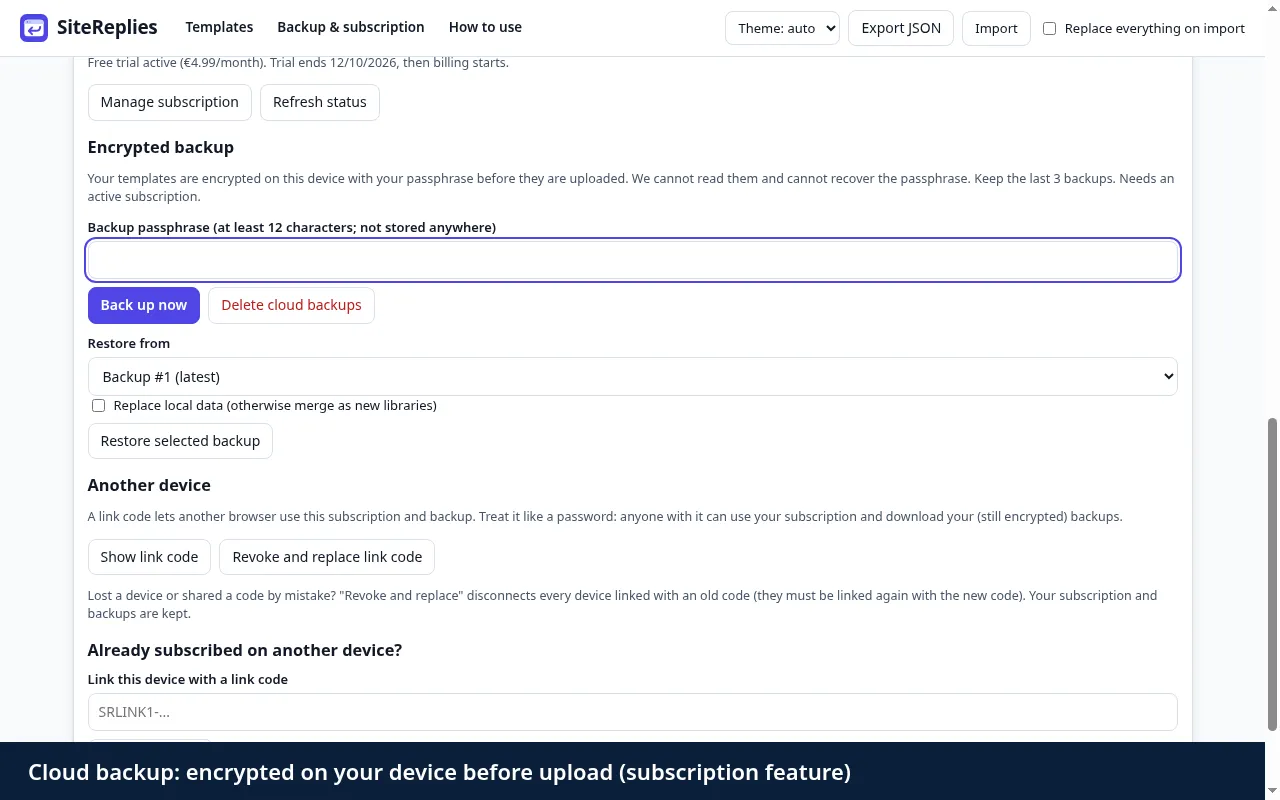
Your templates live on your device. With a subscription you can add an encrypted cloud backup: open Manage templates, Backup & subscription, choose a passphrase (at least 12 characters) and press Back up now. Your templates are encrypted on your device before upload, so we cannot read them. Nobody can recover a lost passphrase.
To restore, pick a backup, enter the same passphrase and press Restore. By default restored libraries are added as new ones; tick "Replace local data" only to overwrite everything. The last 3 backups are kept (up to 1 MB each) and deleted 30 days after a subscription ends. Export JSON gives you a local copy any time.
Link another device
On the subscribed device: Backup & subscription, Show link code. On the other device, paste it into "Link this device". Both then share the subscription and can restore the same backups.
Limits and known issues
- Inserts plain text only (line breaks are kept; no bold, links or images).
- Does not work in cross-origin iframes, canvas-based editors, remote-desktop surfaces or Chrome's own pages (Web Store, settings). Use Copy there.
- Password fields and read-only fields are never filled.
- Importing from other tools is best effort: CSV (columns like title, shortcut, body) and generic JSON lists. Compatibility with a specific product's export is not guaranteed.
- If your subscription ends, local templates stay and can be exported; inserting and cloud backup need an active subscription or trial.
Keyboard shortcuts
| Ctrl+Shift+Y | Open SiteReplies (changeable in Chrome) |
| ↑ ↓ | Choose a template |
| Enter | Open the preview |
| Ctrl+Enter | Insert |
| Alt+S | Star / un-star |
| Esc | Back from the preview |
Need help? See the Support page.